Perform the setting change or removal for Floor
The setting change or removal can be performed for Floor.
Start-up
- Select [Floor Settings] from link menu (a) on “Site Dashboard” screen.
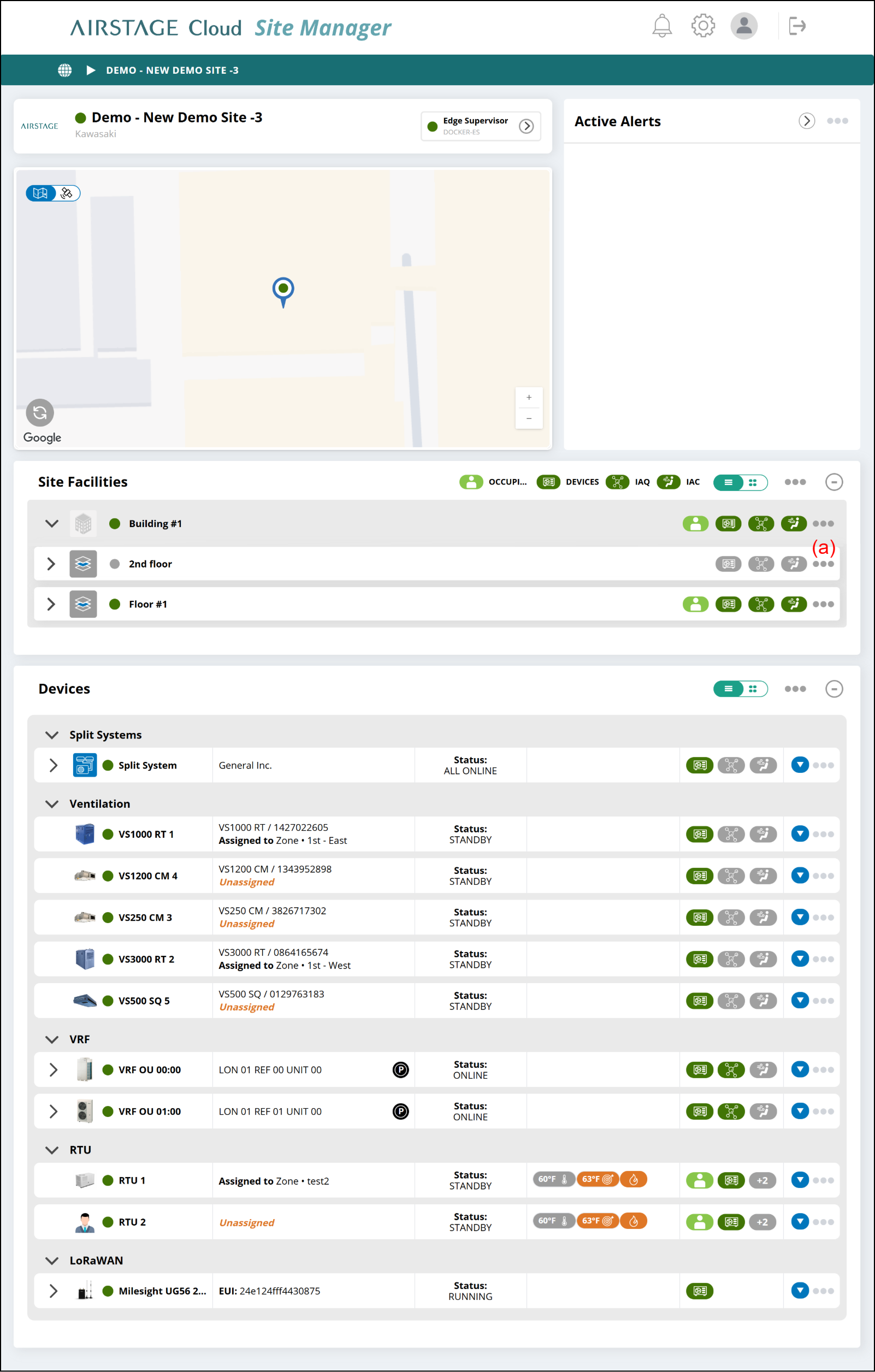
"Floor Settings" window
- Enter the following page information.
- To complete the setting, select the button (g).
The setting will be saved, and the window will close.
If you want to close the window without saving the changes, select the button (f).
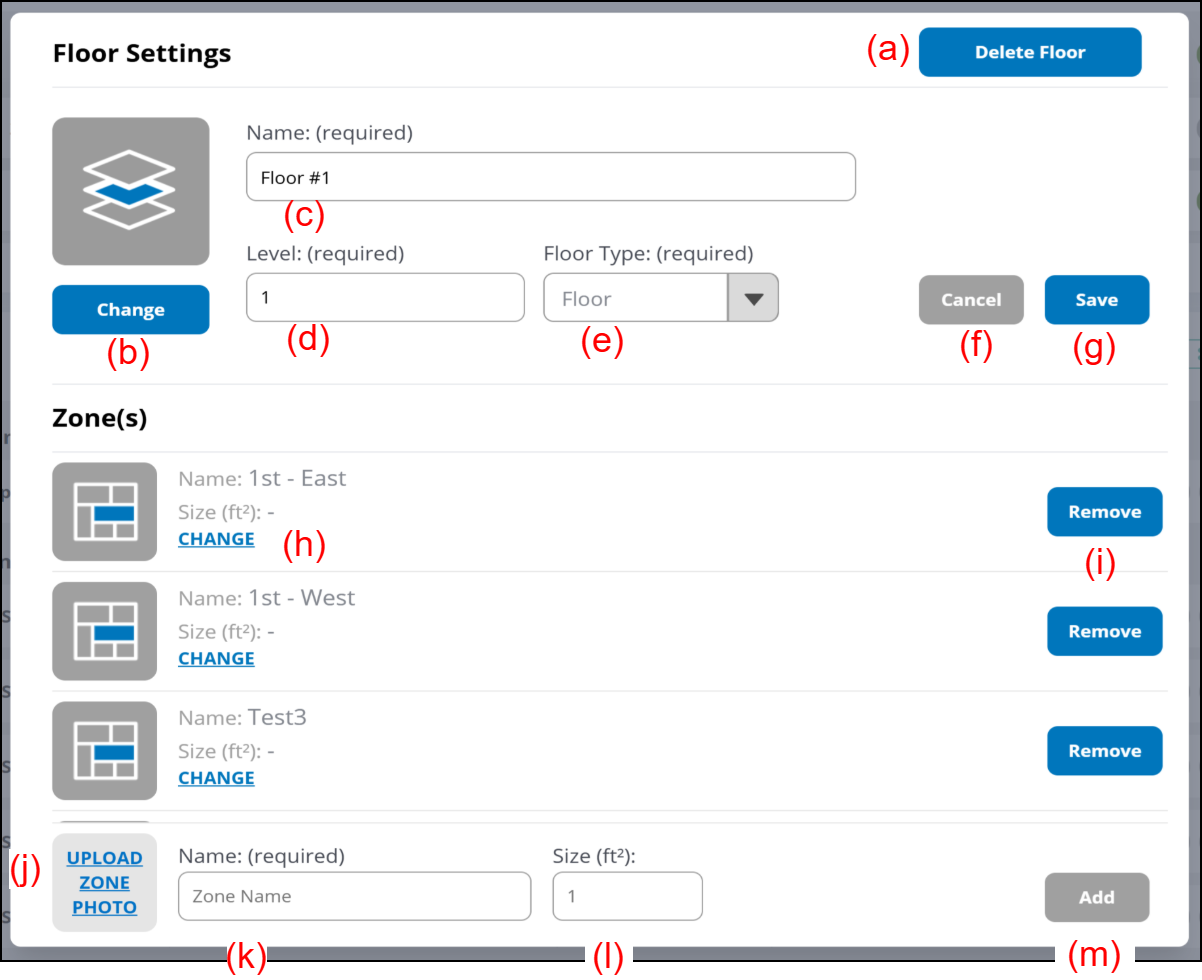
(a) [Delete Floor] button
Deletes the Floor.
(b) [Change] button
Changes the Floor photo.
(c) Enter the Floor name.
(d) Enter the Floor level.
(e) Select the Floor Type.
- Floor: Usually select Floor.
- Basement: It is displayed below Floor in the Floor Type in ascending order of Level.
- Mezzanine: It is displayed above the Floor in the Floor Type of the same Level.
- Roof: It is displayed above the Floor in the Floor Type of the same Level or above the Mezzanine.
(Example)
| Floor Type | Level |
|---|---|
| Floor | 3 |
| Roof | 2 |
| Mezzanine | 2 |
| Floor | 2 |
| Floor | 1 |
| Basement | 1 |
| Basement | 2 |
| Basement | 3 |
(h) [Change] button
Changes the Zone photo.
(i) [Remove] button
Removes the Zone.
(j) [Upload] button
Uploads the Zone photo.
(k) Enter the Zone name.
(l) Enter the Zone size.
(m) [Add] button
Adds the Zone.